
Appearance
Messages
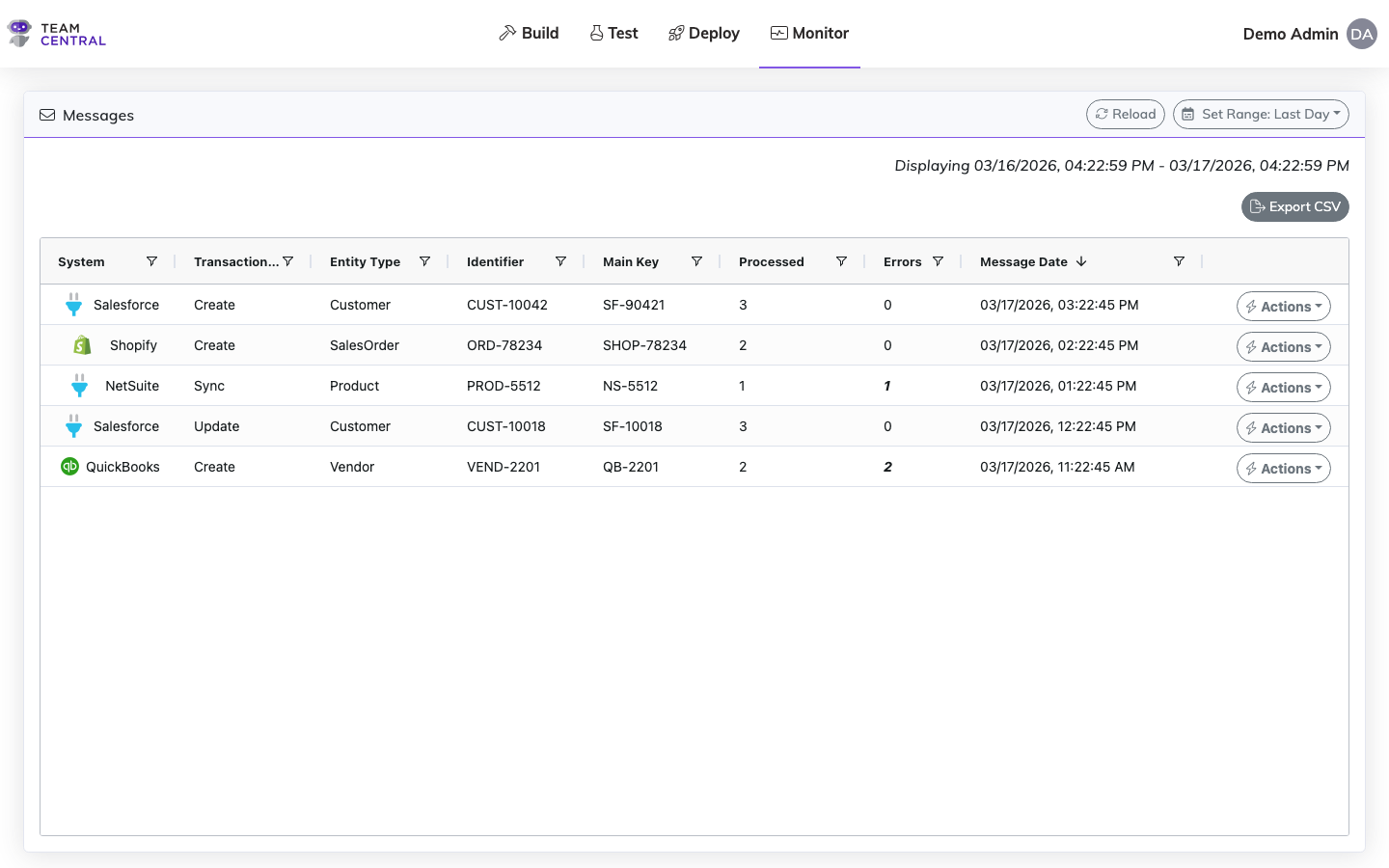
The Messages page allows you to search and inspect individual integration messages. Filter by entity type, endpoint, date range, and more to find specific transactions.
Key Features
- Message Search — Filter messages by endpoint, entity type, date range, and status
- Message Details — View full message metadata including primary keys, receipts, and processing history
- Rerun Capability — Reprocess failed messages with a single click
View and Manage Messages
- Select Monitor > Messages.
- Then, use the table below to determine the next steps.
| To | Do this |
|---|---|
| View the data | All transaction data will be displayed in the table. |
| Refresh the data | Select Reload. |
| View a specific time range | Select Set Range. Select a pre-formulated Date Range (e.g. Last Hour) or select Custom to apply a specific date and time to view that data. Select Apply. |
| Filter the Messages | Select the filter icon in the header row of any column. Select and enter the required data (required fields vary based on the selected column). Select Apply. To clear any applied filters, select Reset. |
| Sort the Messages | Select the header row in the column to sort. A sort icon will appear in the header row of the column being sorted. Select the header once to sort in ascending order, twice to sort in descending order, and a third time to return to the default. |
| Re-run the message | Select Actions > Re-Run Message in the appropriate row. |
| View Details | Select Actions > View Details in the appropriate row. See Message Detail Tabs below. |
| View Record History | Select Actions > View Record History in the appropriate row. The record history for that message will open in a new browser tab, displaying all messages associated with that record, including all activity and errors with timestamps. From this screen, you can also select Actions > Re-Run Message or Actions > View Details. |
WARNING
The Re-Run Message option should be used only if you understand the error and believe it has already been fixed in the triggering system.
Message Detail Tabs
When you select Actions > View Details, a Message Details window appears with the following tabs:
| Tab | Description |
|---|---|
| Message | View the message details in code view. |
| Receipts | View all subscribers that picked up that message and tried to process it, as well as Error Log data. |
| Outputs | Data will be populated if the subscriber endpoint has an entity type of "File," and will include a link to download the file that was created when the integration was triggered to execute. |
| Re-Run History | View an audit of the previous re-runs, including the Date, By, and any Comments associated with that re-run. |
TIP
It is advised to view the message details, which provides an opportunity to analyze the error details and formulate a fix; however, as needed, you can also select to Re-Run the message from the details view.
Example
Viewing Record History is a good way to see if the error has already been resolved. For example, if an error happened when syncing a sales order at 8 PM, but was successful when it ran again at 9 PM, both messages would appear in the history.
Related Pages
- Monitor Dashboard — View platform health at a glance
- Error Logs — Investigate processing errors
- Maintain Index — Manage entity search indexes