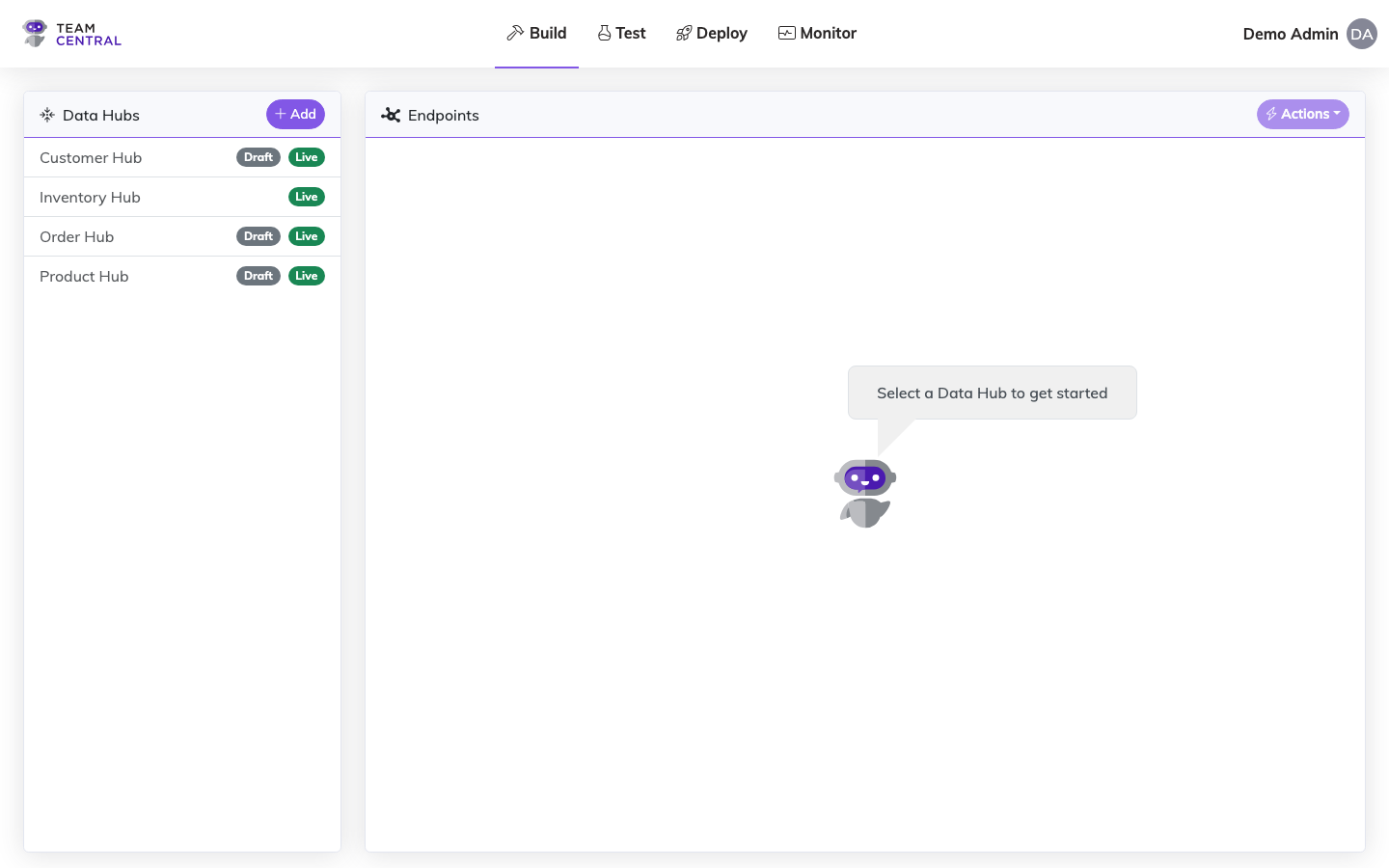
Appearance
Data Hubs
Data Hubs are versioned configurations that define how data flows between connected systems. Each hub connects the systems (endpoints) that have or need the data defined within your data models. You create a Data Hub by adding endpoints, configuring the actions each endpoint can execute, and then mapping endpoint actions to the common model. This ties all of the data together using your previously defined schema definitions and configured connectors.

Key Features
- Versioned Configurations — Maintain draft and live versions of your data hub configurations
- Publisher & Subscriber Endpoints — Define how data is read from and written to connected systems
- Property Mapping — Map fields between your canonical data model and connector-specific formats
- Scheduling — Configure when publishers run to collect data
Build a Data Hub
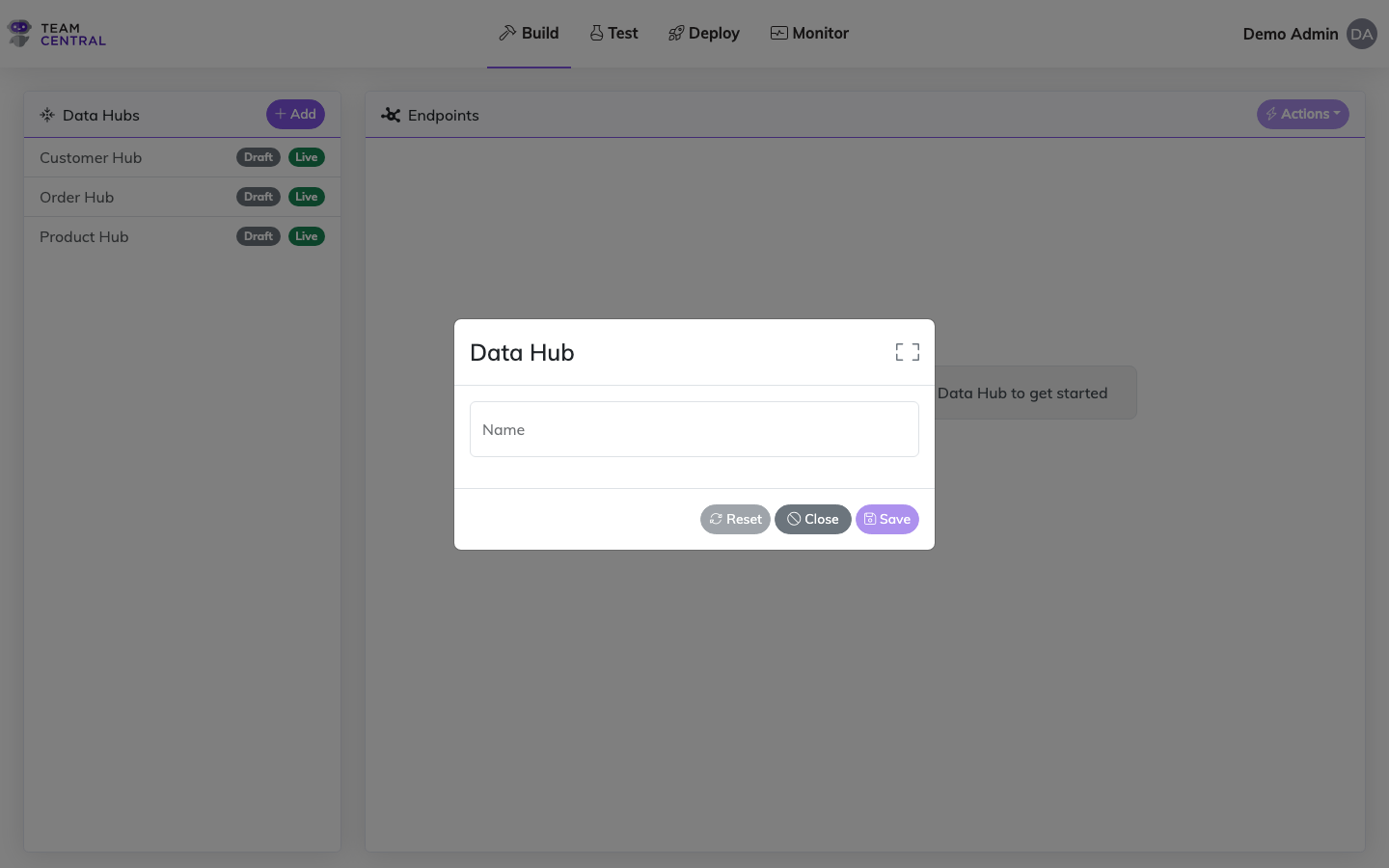
- Select Build > Data Hubs from the main menu.
- Select + Add.
- Enter a Name for the new Data Hub.
- Select Save.
INFO
- When a new Data Hub is created, it is saved as a Draft version until deployed.
- Once a Data Hub is created, you can select the edit icon to rename it if needed.
Add Endpoints to a Data Hub
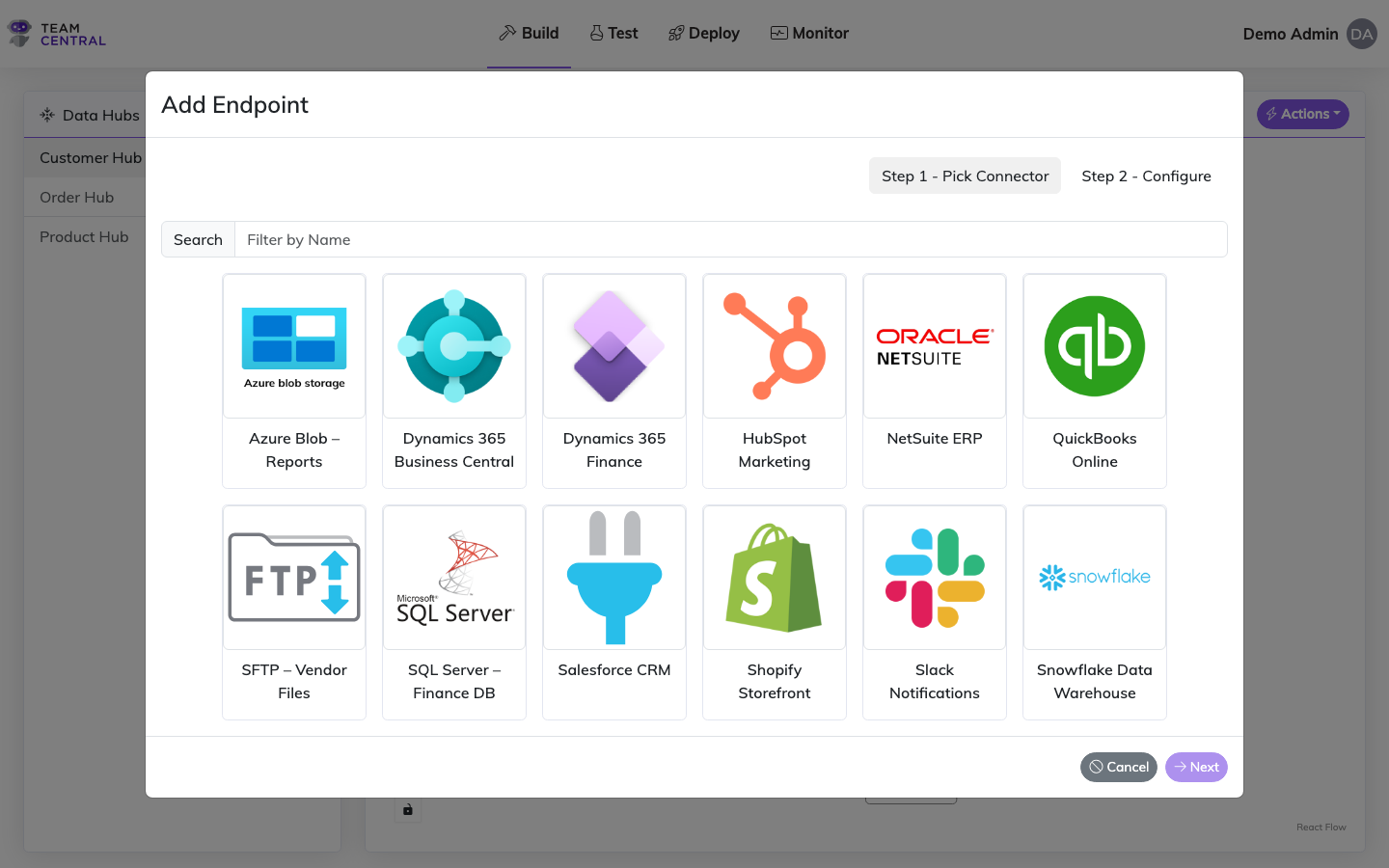
- Select Build > Data Hubs from the main menu.
- Select the appropriate Data Hub in the left column.
- Select Actions > Add Endpoint.
- Select the appropriate Connector.
- Select Next.
- Then, use the guidance below to configure the endpoint using a template or manually.
Best Practice
It is common to have multiple Transaction Types in the same Data Hub; however, it is best practice to keep all of the endpoints that are publishing and subscribing to the same Transaction Type grouped within the same Data Hub. See the Data Models section for additional information about Transaction Types.
Using a Template
Templates provide pre-configured mapping for some of the more common schema relationships for the selected endpoint and associated action. They are available for commonly built syncs (e.g. a Customer sync for NetSuite). If a template is available, it is strongly recommended to use one.
INFO
If a template is not available for the selected connector, you will not see the Use Template toggle. You will need to manually build the endpoint settings and mapping.
- Toggle Use Template ON.
- Select a Template from the drop-down menu. Once selected, a template description will appear below the menu.
- Select a Schema from the drop-down menu (or select Create New Schema).
- Select a Transaction Type from the drop-down menu. This drop-down is dependent on previous selections and will only appear once you click inside the field. If Create New Schema is selected, you will need to enter a new Transaction Type in the field.
- As needed, toggle Customer Endpoint Host ON, then select a Host Type Extension from the drop-down menu.
- Select Save.
TIP
When using a template, you can select Show Changes to open a sliding panel showing the list of data models included in the template, including the individual schema properties. Select Close to close the panel.
Configuring Manually
- Enter an Endpoint Name. This field is simply a displayed label in the design view.
- Select an Endpoint Type from the drop-down menu. See the Endpoint Types section below for descriptions.
- As needed, select a File Type. This field is only applicable for file-based connectors (e.g. FTP sites or local storage). See the File-based Endpoint Encoding Types table below.
- Select a Schema from the drop-down menu.
- Select a Transaction Type from the drop-down menu. This drop-down is dependent on previous selections and will only appear once you click inside the field.
- As needed, toggle Customer Endpoint Host ON, then select a Host Type Extension from the drop-down menu.
- Select Save.
Repeat this process to add as many endpoints as needed to a Data Hub.
Endpoint Types
INFO
- A single-direction endpoint creates either a save action or a read action (e.g. Publish creates only a read action, while Subscribe creates only a save action).
- A bi-directional endpoint creates both a save and read action.
- When a save action is created, an interaction to the Key is automatically created.
- A Webhook is a specific type of publishing endpoint where data is pushed from the connector to Central. Only certain vendors support this capability.
- Data Provider is used when creating API Gateway endpoints and should not be selected when working within a Data Hub.
| Endpoint Type | Description |
|---|---|
| Batch Publish | Publishes a group of transactions together. |
| Batch Subscriber | Receives a group of transactions to be processed together. |
| Batch Subscribe Messages | Receives a group of messages and batches them together. It enables a publisher to run on a normal schedule; then, a subscriber can batch process the messages as needed (while other systems may get minute-to-minute updates). This is common in file-based protocols. |
| Both | Publish and subscribe the transaction. |
| Both with Webhooks | A bi-directional endpoint where the publisher is implemented using Webhooks. |
| Data Provider | A read-only endpoint used in the API Gateway. It is not intended to be used inside of a Data Hub. |
| Delete Publisher | A publishing endpoint specifically used to publish records to be deleted or inactivated across systems. |
| Publish | Triggers the publishing of data to be consumed by other systems that are listening for a particular Transaction Type. |
| Publish with Webhooks | A publisher that is implemented with Webhook capability. |
| Subscribe | Triggers the subscribing of data by systems listening for a particular Entity Type and Transaction Type. |
File-based Endpoint Encoding Types
When configuring a file-based endpoint (e.g. FTP or local storage connectors), you must select an encoding type for the file.
| Encoding Type | Description |
|---|---|
| UTF-8 | Supports Unicode characters, while being backward compatible with ASCII. |
| UTF-8 (with BOM) | Supports Unicode characters, while being backward compatible with ASCII, including the BOM (Byte Order Mark). The BOM is a special character sequence placed at the beginning of the file to indicate the file is encoded in UTF-8. Some systems require the BOM to know what encoding to use for the characters. |
Endpoint Settings
Each endpoint has a Settings tab where you can configure processing behavior. The available settings depend on whether the endpoint is a publisher, subscriber, or both.
Post Receipt Replication Messages
Subscriber only
When enabled, delivery receipts produced by this subscriber are published to a replication topic. A publishing endpoint with a configured Receipt Save Action can then pick up these receipts and write them back to the source system (e.g. as a system log entry). This is useful for confirming delivery status back to the originating connector.
Receipts can be filtered at the publishing endpoint by Receipt Level — all receipts, just errors, or just successful ones.
Override Key Source
Subscriber only

By default, a subscriber's primary key is derived from the engine's standard key resolution — typically an ObtainPrimaryKey action in the endpoint's save flow, or from previously accumulated keys on the indexed entity. The Override Key Source toggle lets you bypass that default and explicitly choose where the subscriber's primary key comes from.
When the toggle is off (default), key resolution follows the standard engine path. When toggled on, a Primary Key Source dropdown appears with two options:
Use Publisher Key
The subscriber uses the inbound message's publisher key (the source system's primary key) as its own primary key. This is useful when the subscriber system should store the same identifier that the publisher uses, eliminating the need for a separate key assignment step.
Use Model Property

The subscriber derives its primary key from a property on the entity model. When selected, a property picker appears showing all simple (non-foreign-key) properties from the endpoint's schema. Select the property whose value should become the subscriber's primary key.
This supports both standard properties (via BusProperty) and custom data fields (via CommonName). The selected property map can also include transforms, so you can derive the key from a computed value.
When to use Override Key Source
Common scenarios:
- Publisher Key: When the subscriber should reuse the source system's ID (e.g. syncing a record back to a shared reference system)
- Model Property: When the subscriber's key comes from a business field like an order number, SKU, or external reference ID that exists on the entity model
WARNING
Override Key Source cannot be used alongside an ObtainPrimaryKey action targeting the same key (Id). If both are configured, a validation error will be raised on save.
Enable Property Change Tracking
Publisher only
When enabled, the publisher compares each new message against the most recently published message for the same entity. If none of the mapped properties have changed, the message is filtered out and not published. This prevents redundant downstream processing when an entity is re-read but its relevant data hasn't actually changed.
The comparison uses the endpoint's Read property maps to determine which fields to check. Only Save events are evaluated — Delete events are always published.
Parallel Process Count
Publisher and Subscriber
Controls the degree of parallelism when the endpoint processes messages. The engine uses this value as the MaxDegreeOfParallelism for message publishing and receipt processing operations.
- Defaults to 1 (sequential processing) when unset or
0 - Increase the count to process multiple messages concurrently, improving throughput for high-volume integrations
- Each parallel operation includes automatic retry logic (up to 10 retries)
- Higher values consume more system resources — increase gradually and monitor performance
Concurrency Limit
Subscriber only
Controls how many messages the Azure Service Bus processor can handle concurrently for this subscriber. Unlike Parallel Process Count (which controls parallelism within a processing batch), this setting governs how many messages the bus delivers to the subscriber at the same time.
Must be at least 1 if set. When left unset, the Service Bus default applies.
Supported Operations
Publisher and Subscriber
Defines which CRUD operations (Create, Read, Update, Delete) the endpoint supports. This controls which messages the endpoint will process or publish.
- When no operations are selected, the endpoint supports Create, Read, and Update by default
- Delete must be explicitly enabled — it is never implicitly supported, even when the list is empty. This is a safety mechanism to prevent accidental deletions
- For subscribers, the engine determines whether an incoming message is a Create or Update by checking if the entity already has a primary key for the subscriber's system
The same operation filtering is also applied at the map group and individual property map levels, allowing fine-grained control over which fields participate in each operation.
Supported Systems
When configured
Restricts the endpoint to only process messages from specific source systems. When the list is empty, all systems are accepted. Use this to limit which connected systems can publish to or subscribe from this endpoint.
Engine Behavior
Engine behavior settings control how the processing engine handles messages at a lower level. Publisher and subscriber settings are configured separately.
Subscriber Settings
Ignore Same System Constraint
By default, a subscriber will not process messages that originated from its own system. This prevents circular sync loops where a system receives its own changes back.
Enabling this setting bypasses that check, allowing the subscriber to process messages from its own system. Use this when you intentionally need a system to react to its own published changes.
Publisher Settings
Header Only
When enabled, the publisher only processes the header (parent) entity data. Child entity lists are not loaded from the database or merged from the integration message.
Use this when you only need to sync top-level entity fields and want to skip the overhead of processing child collections (e.g. line items, resources).
Skip Index
When enabled, the entity is not saved to the index after processing. The message is still published to subscribers, but no record is persisted locally.
This is useful for pass-through scenarios where you want to relay data downstream without maintaining a local copy.
Index Only
When enabled, the entity is saved to the local index but is not published to the subscriber topic. No downstream subscribers will receive the message.
Use this to build up the local entity index (e.g. during an initial data load) without triggering subscriber processing. Key accumulation is also skipped unless Send to Search is enabled.
Lookup Using All Primary Keys
When the engine cannot find an existing entity using the standard primary key, enabling this setting tells it to attempt a lookup using any other primary keys present in the message. This is a fallback mechanism — if the standard key doesn't match, the engine searches by alternate keys before deciding to create a new entity.
If multiple entities match the alternate keys, an error is thrown to prevent ambiguous updates.
Allow Multiple Primary Keys
This setting appears when Lookup Using All Primary Keys is enabled. It is configured per system — you toggle it on for each source system that should be allowed to store multiple primary keys on the same entity.
By default, each source system can only have one primary key per entity. If a new key arrives with a different ID for the same system, the engine either updates the existing key (if the key allows changes) or throws an error. When this setting is enabled for a system, additional keys with different IDs are added alongside existing ones instead of replacing them.