
Appearance
Data Models
Data Models are built by identifying the entities you want to synchronize and assigning Properties to each. A Data Model is the whole of the data you are defining for an entity, while the components that make up that data are Properties. For example, a Data Model could be Customer, while Customer Name is a single Property.
You define Properties using two tabs: Properties — which holds both value properties and references in one list — and List. You can add multiple Properties of multiple types to a single Data Model.
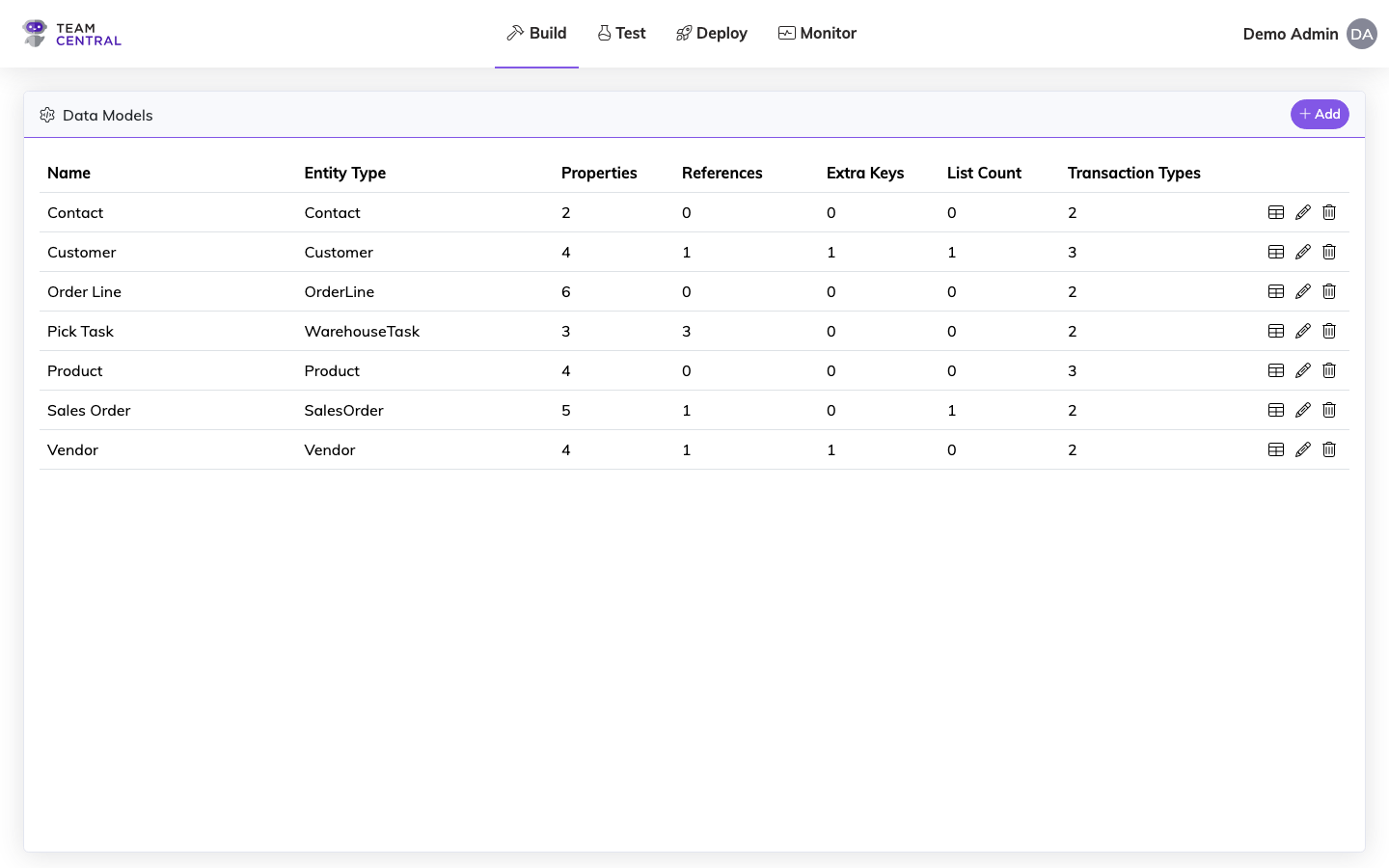
Key Features
- Entity Types — Define data models for Customer, Sales Order, Product, Vendor, and other entity types
- Property Maps — Configure properties and their mapping types (Property, ForeignKey, CustomData)
- References — Define references between entities
- List Properties — Support for nested/child entity collections (parent/child hierarchies)
- Transaction Types — Specify supported operations that pair Publishers and Subscribers
- Extra Primary Keys — Handle edge cases where entities exist in multiple tables
Each Property can also be edited to include:
- A Description for additional context (e.g. distinguishing between multiple Inventory data models with descriptions like Picked or Received)
- A Related Data flag, which makes this property available to related entities during sync events (e.g. a Customer's name can be carried onto a Sales Order). See Related Data for details on how this works.
- Chat Form Controls that help build the AI model
Best Practice
- Develop naming convention standards early (consistent case, hyphen usage, etc.)
- Use Value Properties when available
Which structure do I need?
Extra Primary Keys, list properties, Custom Lists, and Projections all answer "this record is more than one flat row" — in ways that behave very differently downstream. Modeling Strategies walks through choosing between them.
Property Types
A Property's Data Type determines how it behaves — a value type (String, Date, Decimal, Boolean) for a Value Property, or Reference for a Reference Property. Data Models also support extra primary keys and list properties.
Value Property
A Value Property holds a single value — its Data Type is a value type such as String, Date, Decimal, or Boolean. It represents data that is both common and static, meaning it applies to all (or most) of your data systems and is unlikely to change between systems (e.g. Customer Name). When defining a Value Property, it must align and link to a property defined by the Common Model (a Central Property).
Extra Primary Keys
Extra Primary Keys are used when the same Entity needs to exist in multiple tables within a given system. For example, Locations or Divisions may have their own database table but also be replicated into a Departments table. This feature is generally only used in edge cases where a system has unique data storage methodologies.
An Extra Primary Key is a second way to address the same record — it does not create a second one. If the two identities need different values, a different lifecycle, or different downstream routing, see Modeling Strategies.
Reference Property
A Reference points to another entity that may be identified differently from one system to the next, such as a customer record number in your sales system vs. your billing system. References live alongside simple properties on the Properties tab. Some reference Entity Types are further defined with a Sub-Type (e.g. a Company could be sub-classified as a Customer or Vendor). Many entities declare their common references out of the box, so those appear ready to add in the Property list; you can also add a custom reference to any entity type.
List Property
A List Property is a pointer to another Data Model, used for parent/child customizations. For example, an order has a list of line items, and each line item has its own Data Model defining Quantity, Amount, Discounts, etc. Any parent/child data should be defined within a List Property.
Lists come in three kinds, chosen with the List Type selector: Built-In (a list property the common model already declares), Custom List (a collection you name yourself), and Projection (a second level of one relationship that other records can reference). See Modeling Strategies for choosing between them.
Transaction Types
Transaction Types are events that become part of the Data Model, physically pairing a Publisher and a Subscriber. They identify the actions you want to take on the data, such as Save Customer or Delete Customer. Transaction Types tie directly to a Data Model, enabling users to select those actions when adding Endpoints.
WARNING
Each Data Model must be assigned one or more Transaction Types. The Transaction Types created during this process will become part of a selectable list when adding Endpoints to map your data.
Add a Data Model
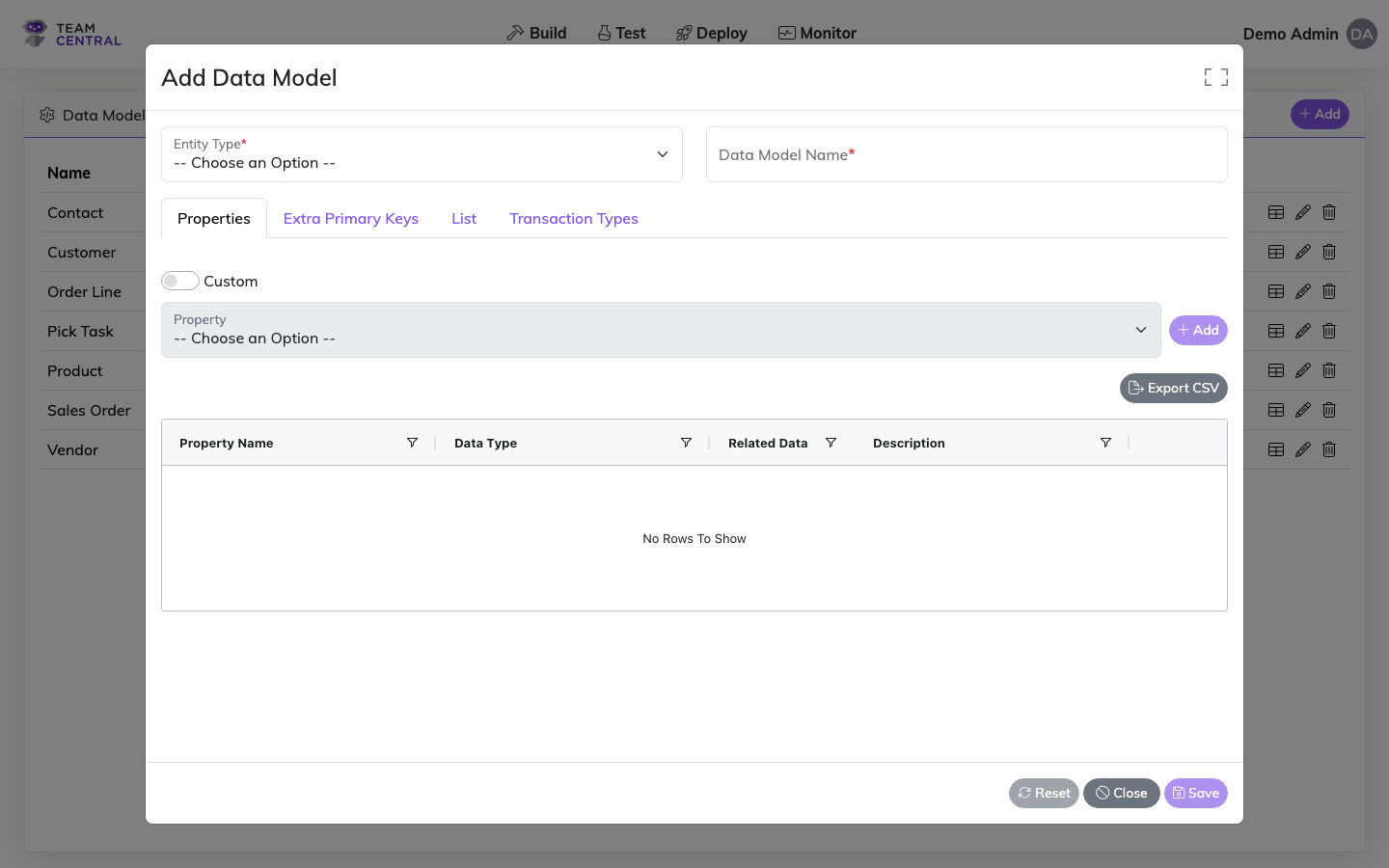
Select Build > Data Models from the main menu.
Select + Add.
Select an Entity Type. Sub-typed entities are listed with their sub-types expanded — for example Warehouse Task (Pick) — so you choose the specific sub-type directly from the list. For a sub-typed entity that has no predefined sub-types, a Sub-Type field appears where you enter your own.
TIP
Once created, the Entity Type and Sub-Type cannot be modified.
WARNING
A Sub-Type can be defined for several pre-determined Entity Types and adds a more precise attribute to that Data Model. They allow Data Models defined by the same Entity Type to be cataloged into more precise groupings, enabling the Common Model to group relationships in the database even when the data is housed in different systems.
For example, a Data Model with the Entity Type "Company" may be further classified into Sub-Types "Vendor" and "Customer." The Sub-Type discloses which relationship this particular Data Model refers to.
- Sub-types appear either as expanded entries in the Entity Type list or, for entities without predefined sub-types, in a separate Sub-Type field — only for supported Entity Types
- Each custom Sub-Type must be entered precisely (e.g. Vendor vs vendors will create two separate sub-types)
- When adding a reference to a sub-typed Entity Type, you can select a known Sub-Type from the drop-down menu
- Enter a Data Model Name.
WARNING
Do not add spacing to any field entries.
- Assign Properties to the Data Model using one or more of the tabs below:
Adding a Property
Value properties and references share a single Properties tab — a Property's Data Type determines which it is.
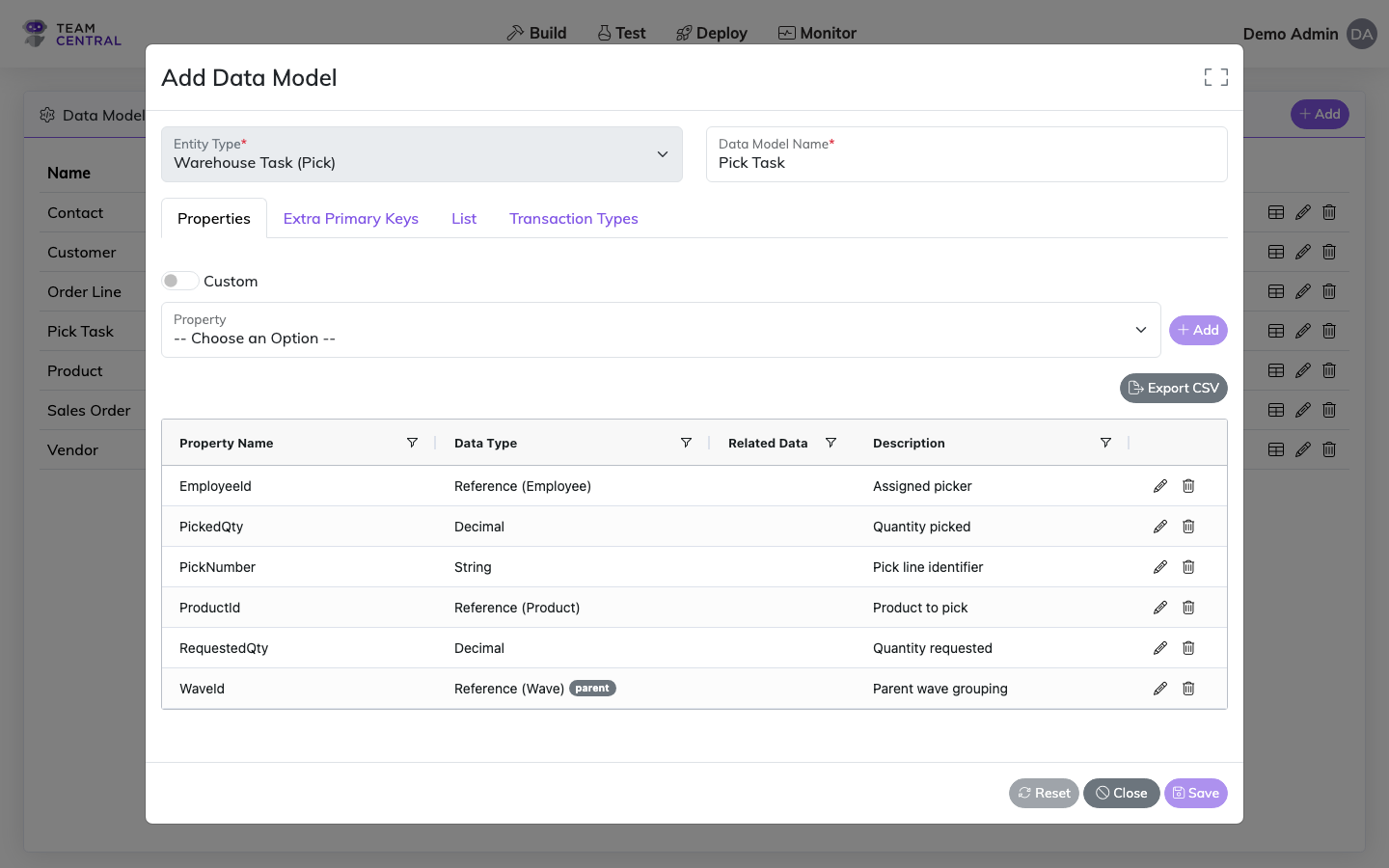
- Ensure the Properties tab is selected
- Select an entry from the Property drop-down menu, then select + Add. The menu groups two kinds of entries:
- Properties — the entity's available Common Model properties (filtered to the chosen sub-type, when applicable)
- References — relationships the entity commonly declares, shown as Name (Sub-Type) — for example WaveId (Wave). Adding one creates a reference
- Repeat as needed for additional properties
Example
You may create a Data Model named Customer to define all pertinent company data, including Properties such as Name, PrimaryBillingAddress1, PrimaryBillingAddress2, PrimaryBillingCity, etc.
Adding a custom property or reference
When the property or reference you need isn't already listed, toggle Custom ON and choose a Data Type:
- String — enter a Name to add a custom property
- Reference — select an Entity Type and, if applicable, a Sub-Type, then enter a Name to add a custom reference
Select + Add when done.
TIP
- The Sub-Type menu appears only for applicable Entity Types.
- A name that matches an existing property is flagged and can't be added.
Adding Extra Primary Keys
- Select the Extra Primary Keys tab
- Enter a Key Name; then select + Add
Best Practice
When naming Extra Primary Keys, give them a name representative of what the additional table in the system is called.
Adding a List Property
- Select the Lists tab
- Choose a List Type:
- Built-In — select a List Property from the drop-down menu
- Custom List or Projection — enter a List Name of your own
- Select a Data Model from the drop-down menu
- Select + Add
- Repeat as needed
TIP
Only selectable options will be shown. The List Property menu is filtered based on your Entity Type selection, and the Data Model menu is filtered based on your List Property selection.
Custom Lists and Projections
Both are in Preview and are marked as such in the selector. They take a name you choose rather than a declared list property, and link a child Data Model — a Projection's child model carries the reserved ParentProjection sub-type, which ➕ Add New Data Model… sets for you. See Custom Lists and Modeling Strategies.
WARNING
You can add multiple Properties of multiple types to a single Data Model. However, to create a List Property, you must first define each list item as its own Data Model.
- Select the Transaction Types tab.
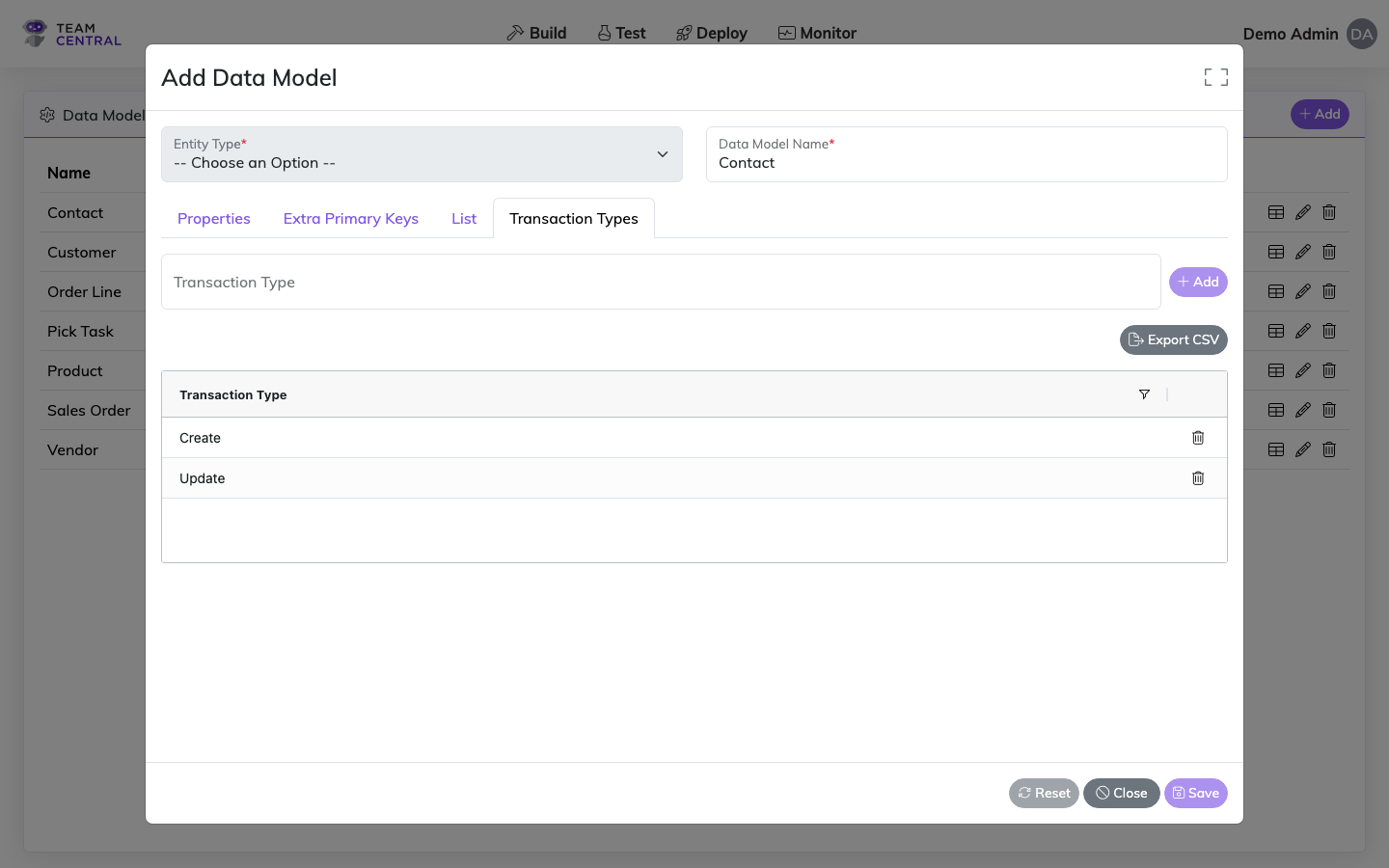
- Enter a Transaction Type in the text field; then select + Add. Repeat until all necessary Transaction Types are added.
WARNING
- Transaction Type is a freeform text field to describe the event name, ultimately linking Publishers and Subscribers together. When messages get published under a certain Transaction Type, only subscribers to that Transaction Type will process it.
- Multiple Transaction Types can be added to a single Data Model for micro-level messaging, publishing the same data in several ways, or targeting/isolating integrations.
- Data Models and Transaction Types can be built incrementally and amended at any time. However, both must be completed prior to mapping Endpoints.
- When finished, select Save.
Edit a Data Model
Select Build > Data Models from the main menu.
Select the edit icon in the appropriate Data Model row.
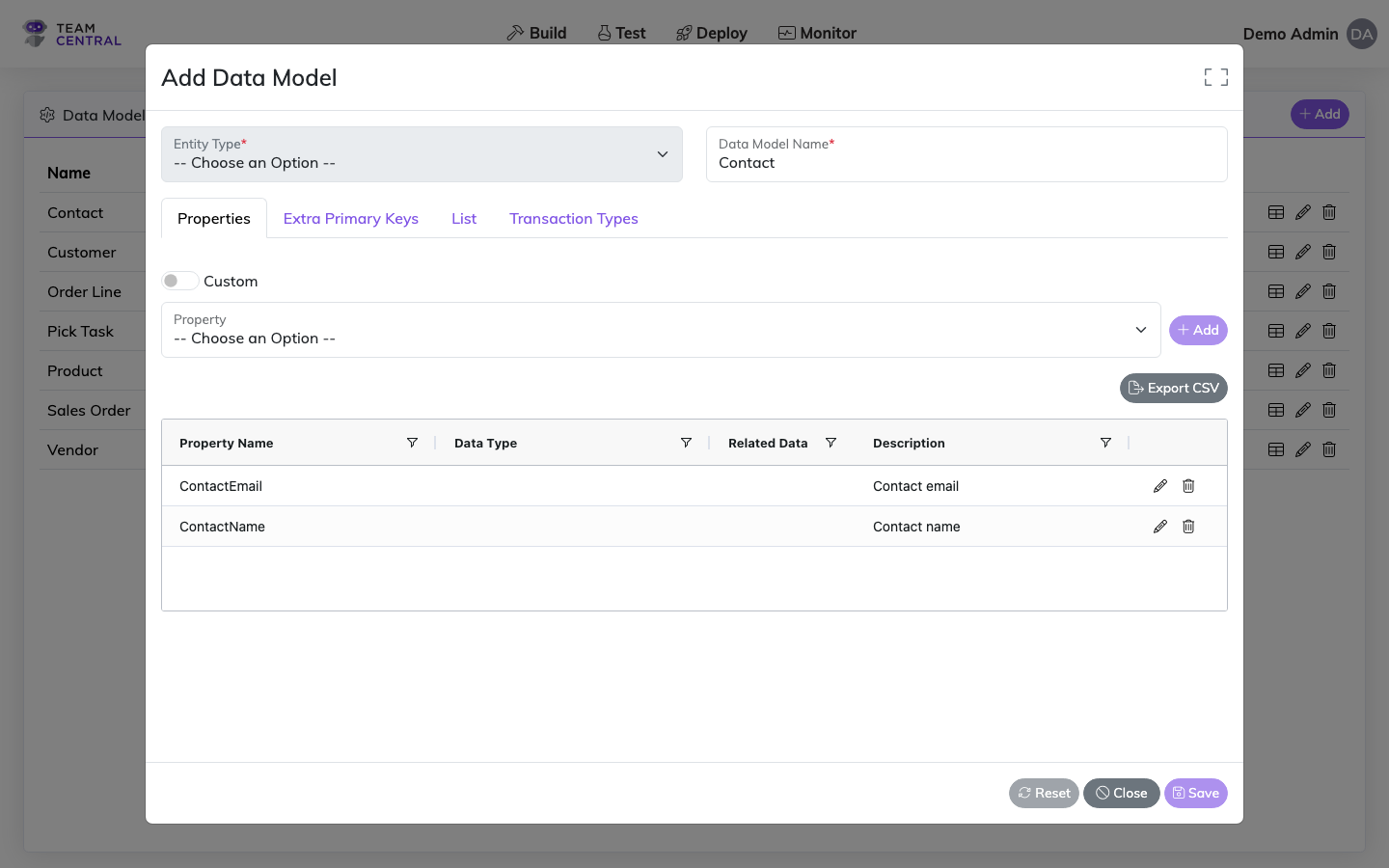
- Modify the attributes as needed using the operations below:
TIP
Once created, the Entity Type and Sub-Type cannot be modified.
| To | Do this |
|---|---|
| Edit the Data Model Name | Enter a new Data Model Name in the text field |
| Add a Property | Follow the instructions in the Add a Data Model section above |
| Add a Property Description | On the Properties tab, select the edit icon in the appropriate row. Enter the Description, then select Save |
| Toggle Related Data | On the Properties tab, select the edit icon. Toggle ON the Related Data switch, then select Save. This makes the property available as Related Data on entities that reference this Data Model. |
| Include in Chat Form Control | On the Properties tab, select the edit icon. Toggle ON Chat Form Control, choose a Control Type, enter a Label and Default Value, toggle Required as needed, enter a Form Sequence and Group Name, then select Save |
| Delete a Property or Transaction Type | Select the appropriate tab, then select the delete icon in the appropriate row |
- When finished, select Save.
TIP
To discard all changes and exit edit mode, select Cancel. To reset all edits made during this session and remain in edit mode, select Reset.
Delete a Data Model
Select Build > Data Models from the main menu.
Select the delete icon in the appropriate row.
Select OK to confirm.
WARNING
Deleting a Data Model cannot be undone; you must recreate it if needed.
Host Type Extensions
Advanced Tool
Host Type Extensions enable developers to take a pre-built Central Connector and extend it for specific needs (i.e. build your own override). The Host Type references the location in the cloud where your customizations are hosted to run.
Central supports three deployment methods:
- Embedded — The connection runs embedded in the agent, usually for network purposes. If Central needs to get data from within a company's network, the agent accesses the data sources directly.
- Cloud-based — The connection runs via a cloud-based Connector. Central runs on Microsoft Azure and distributes data via proxy method. This is the typical method employed by Central.
- Custom — The connection runs via host type extensions built and customized by the developer. You build a company-specific space in the cloud (e.g. Google Cloud, AWS) to host a Connector and override functionality for your specific needs.
Add a Host Type Extension
- Select Build > Custom Extensions from the main menu.
- Select + Add.
- Enter a Name in the text field.
- Enter the appropriate Secure Settings.
- Select Save.
TIP
To view entered secure settings data, select Hide All or View All, or toggle the View/Hide icon in the entry field.
Edit a Host Type Extension
- Select Build > Custom Extensions from the main menu.
- Select the edit icon in the appropriate row.
- Modify the Name and/or Secure Settings as needed.
- Select Save.
Delete a Host Type Extension
- Select Build > Custom Extensions from the main menu.
- Select the delete icon in the appropriate row.
- Select OK to confirm.