
Appearance
AI Settings
Overview
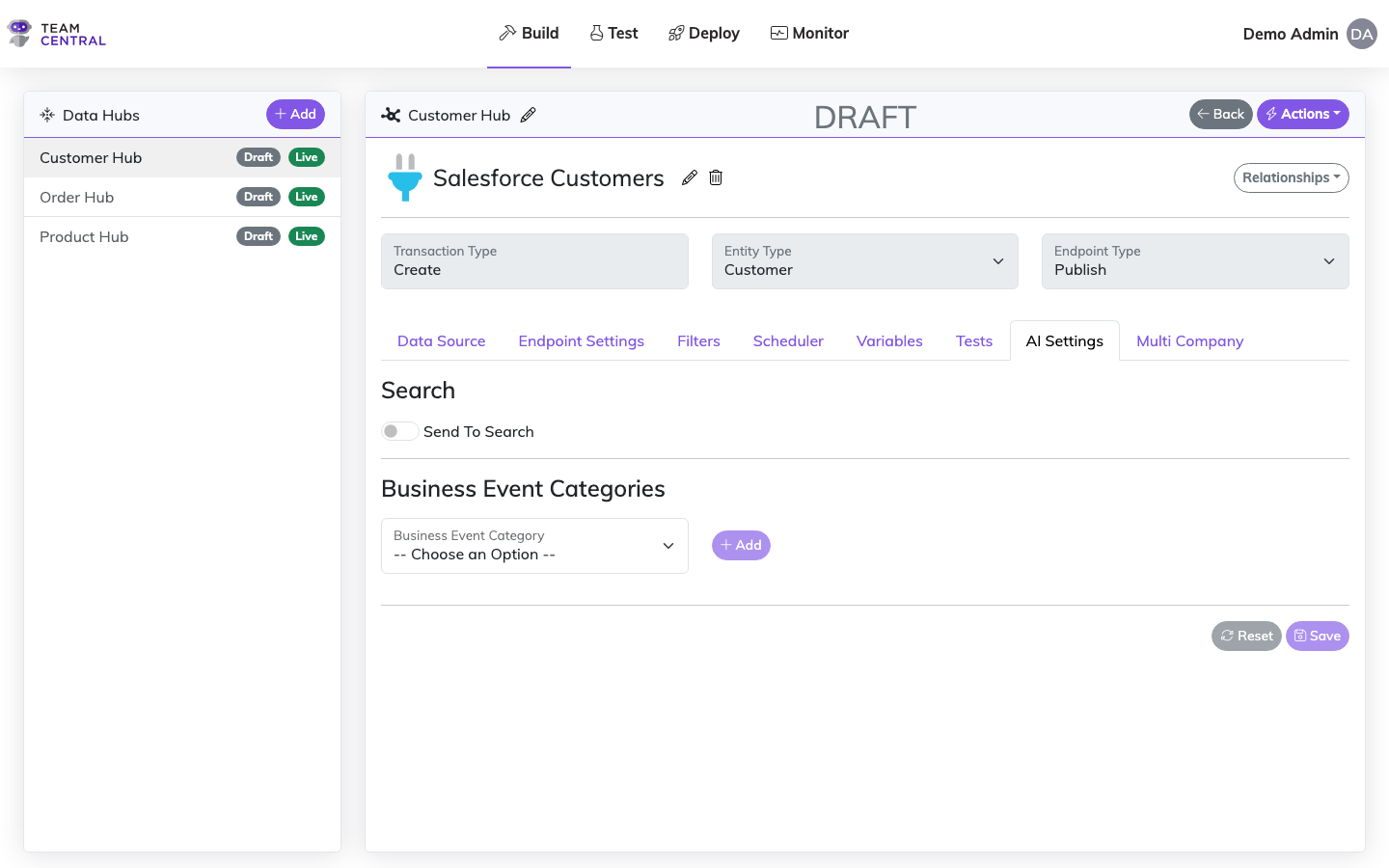
Within your Central Data Hub, you can select the various Endpoints to view the AI Settings tab. The AI Settings tab enables organizations to extend the value of their data beyond traditional system-to-system integration by making selected data available to AI-driven capabilities within Central. These settings control how data is indexed for AI search and how meaningful activities are identified and surfaced as Business Events.
AI Settings function independently from core integration logic. Enabling AI features does not affect how data is published, subscribed, transformed, or synchronized between systems. Instead, AI Settings determine how data can be discovered, interpreted, and presented once it already exists within Central.
At a high level, AI Settings support two distinct capabilities:
- AI Search Enablement — Allows data from publishing Endpoints to be indexed in a format that AI engines can query using natural language.
- Business Events and Pulse — Allows selected data changes to be promoted as Business Events that surface in Pulse, a personalized activity feed within TeamCentral's agent platform Corbi.
These capabilities are configured separately, allowing organizations to precisely control data visibility, search access, and event notifications.
Notes
- Search and Business Events are independent of each other; data can be searchable without generating events, and events can occur without searchable data.
- Endpoints supply the data; Business Events define how that data is presented.
- Pulse is personalized; users only see what they subscribe to and filter for.
- AI Settings do not affect integrations; the core data synchronization remains unchanged.
Note
AI functionality is intentionally divided between administrative setup and individual personalization.
- Administrators are responsible for enabling Send to Search on publishing Endpoints, defining Business Events, associating Business Events with Endpoints, and establishing event rules and content structure. The configuration of this data determines what data can be searched and what events can be generated.
- End users control which business events they follow, how events are filtered using tags, and how Pulse displays activity relevant to them. This allows users to receive insights that are meaningful to their role without exposing unnecessary data.
Three-Layer Model
AI Settings follow a three-layer model that separates data preparation, event definition, and user experience.
1. Data Preparation: Send to Search
At the Endpoint level within the Data Hub, administrators can enable Send to Search. When enabled, data published by that Endpoint is indexed so it can be queried by AI-powered tools. This includes Data Models, Properties, etc. Then, once indexed, the data becomes available to AI agents and conversational interfaces across the platform.
Note
Enabling Send to Search simply makes data available for AI-based querying; it does not notify users, trigger alerts, or generate feed items in Corbi.
2. Event Definition: Business Events
Business Events represent meaningful moments within the organization, such as new customers, new opportunities, employee milestones or status changes, etc. Business Events are defined at the corporate level and act as reusable templates that describe what data is relevant, how the event should be formatted, and where it may appear (e.g., app feed, summaries). Then, once defined, a Business Event can be associated with one or more publishing Endpoints through AI Settings. Additionally, optional rules can be applied at the Endpoint level to determine when the event should trigger (e.g. an Endpoint publishing account data may be associated with a New Customer business event, but only trigger when the pipeline status equals Customer).
3. User Experience: Pulse and Channels
Business Events display to users through Pulse in the Corbi application. Pulse is a personalized activity feed driven by channels, displaying the Business Events you choose to follow. You can further refine these channels using filters and tags based on the underlying data (such as region, industry, owner, or role). Each user's Pulse experience is unique, reflecting the business events you subscribe to, how those events are filtered, as well as your role, interests, and permissions.
Note
Business Events are configured centrally, but visibility and relevance of the data are controlled individually by each user within Corbi.
Best Practices
- Only enable Send to Search for data that is appropriate for AI-based discovery. Consider access permissions and data sensitivity when making data searchable.
- Define Business Events broadly at the corporate level, then rely on user-level filters in Corbi to tailor relevance.
- To construct the most effective and resourceful Pulse feed, use Endpoint-level rules (e.g. filtering out leads so only customers generate events).
Enable Send to Search
- Select Build > Data Hubs from the main menu.
- Select the appropriate Data Hub; then, select the appropriate Endpoint.
Note
The AI Settings tab can only be found in publishing Endpoints.
- Select the AI Settings tab.
- Toggle Send to Search ON.
- Select Save.
Import Sync History
Once Send to Search is enabled, you can use Import Sync History to backfill the search index with historical data. This replays published messages from all publishers of the same transaction type, rebuilding search entities from existing data without affecting integrations or republishing to subscribers.
- Select Build > Data Hubs from the main menu.
- Select the appropriate Data Hub; then, select the appropriate Endpoint.
- Select the AI Settings tab.
- Select Import Sync History.
- Set the Since date to control how far back to import. Only messages published after this date will be included.
- (Optional) Select Preview to see the total number of messages that will be processed. Only the most recent message per entity will be synced.
- Select Run to begin the import.
When the import completes, a summary displays the number of entities successfully synced and any errors. If errors occur, expand the error list to see per-entity details and links to record history.
Note
Import Sync History consolidates data from all sibling publisher endpoints that share the same transaction type, entity type, and Send to Search setting within the Data Hub. Each publisher contributes only the properties defined by its own maps.
WARNING
For large datasets, the import may take several minutes. The modal will remain open and display progress. Do not close the modal while the import is running.
Associate Endpoint with Business Events
- Select Build > Data Hubs from the main menu.
- Select the appropriate Data Hub; then, select the appropriate Endpoint.
Note
The AI Settings tab can only be found in publishing Endpoints.
- Select the AI Settings tab.
- Select an option from the Business Event Categories drop-down menu.
- Select +Add.
- Select Save.
Related Pages
- Building Data Hubs — Create and configure Data Hubs
- Business Events — Define Business Event categories and templates
- Deployments — Deploy configurations to your environments